
MY CARE

Your healthcare information through MY CARE – available from Monday 23 March 2026.
It’s now simpler than ever for you to view your hospital and specialist community medical information digitally, in one convenient place.
You can access MY CARE using an app on your mobile phone or via your computer.
Around 250,000 patients have made the switch to MY CARE, why don’t you join them?
Key benefits
Here are some of the features you’ll find within MY CARE:
- Manage your appointments: MY CARE holds your recent and upcoming appointments, so it’s easy to check where you need to be and when.
- Get your test results: Once your test results have arrived you can view them on MY CARE. They are clearly laid out and easy to view. (Find out more about test results in MY CARE)
- Share your health information: Allow a family member or carer to access your health and appointment information by enabling Proxy Access
- Reduce the number of letters you get through the post: when you sign up to MY CARE we will send you most of your information digitally through MY CARE, text and email. Quicker, saving paper and keeping all your information in one place. *
*If you sign up to MY CARE and would still like to receive letters through the post, then you can set your communication preferences to opt-in to post.
Get started with MY CARE
If you’re over the age of 16 and you’re a patient at Torbay and South Devon then it’s easy to set up a MY CARE account. You’ll just need your NHS number.
Royal Devon University Healthcare NHS Foundation Trust, Torbay and South Devon NHS Foundation Trust and University Hospitals Plymouth NHS Trust are working in partnership to provide a single Devon-wide hospital electronic patient record (EPR) with the Epic system that is already in use across Royal Devon.
This means that you will be able to access information about your hospital and specialist community care via MY CARE no matter where you are in Devon.
Setting up your MY CARE account
If you’re over the age of 16 and you’re a patient at Torbay and South Devon NHS Foundation Trust, then it’s easy to set up a MY CARE account. You’ll just need your NHS number and your email address or mobile phone number.
Patients from Torbay and South Devon will be able to sign up to MY CARE from Monday 23 March 2026.
Just go to the login page and follow the on-screen instructions.
If you’re under 16 then please see the section MY CARE for under 16s.
Access MY CARE through the app
MY CARE is really easy to use on your smartphone or tablet by downloading the MyChart app.
- Visit the Apple App Store or Google Play
- Search for and download MyChart
- Search for your local hospital trust:
- Royal Devon University Healthcare NHS Foundation Trust
- Torbay and South Devon NHS Foundation Trust
- University Hospitals Plymouth NHS Trust
- Select MY CARE and complete the sign-up process
Download on the App Store Get it on Google Play
If you sign up to MY CARE and would still like to receive printed letters through the post, then you can set your communication preferences in MY CARE. You can find out how by reading the ‘Updating your communication preferences via MY CARE’ section below.
When will my results be released?
There are two ways your results will be made available to you.
Some results are sent automatically to MY CARE after a set time and others will be available after they have been reviewed by your care team.
The maximum times you would have to wait for automatically released results are:
- Blood and microbiology tests – after two weeks (14 days)
- Other tests – after six weeks (42 days)
Most blood tests will automatically release after one day.
In line with national guidance, we only release test results to MY CARE on working days (not on weekends or bank holidays). This allows your care team to be available if you have any queries.
Will all results be released?
Some test results are never released to MY CARE. Certain tests are sensitive and can only be released manually by clinicians. This is based on the type of test performed, not the result itself.
Where can I find support with my test results?
If you have further questions regarding test results or you have not received a result that you are expecting, please discuss this at your next visit, or contact your clinical care team. For more information regarding test results, we recommend the visiting The Royal College of Pathologists’ LabTestsOnline website.
Usually, patients need to be over 16 to have their own MY CARE account. In some situations, teenagers can be granted access to MY CARE from the age of 12. Please talk to your clinician or clinical team to find out more.
A parent or guardian can be granted proxy access to their child’s MY CARE information by their clinical care team at an appointment.
You can choose to give someone access to your MY CARE account. This is called giving someone ‘proxy access’.
If you are a patient over the age of 16, then it is your choice whether to give proxy access to someone you trust. The person you grant proxy access to will need their own MY CARE account.
You can find out more about how to manage proxy access and the levels of access available by reading the ‘Granting proxy access via MY CARE’ section below.
Proxy access for parents and guardians
A parent or legal guardian can be granted proxy access to a child’s MY CARE account by their clinical care team at an appointment. When the child turns 16 the parent’s or guardian’s proxy access will automatically be removed.
You will need your own MY CARE account to have proxy access to your child’s MY CARE.
In the event that there is a change in circumstances for the legal guardian of a child and proxy access needs changing, please call the MY CARE helpdesk for advice.
Proxy access for carers
If the person you care for can use a computer or device, then they need to grant you proxy access themselves. Read the ‘Granting proxy access via MY CARE’ section below for instructions about how to do that.
If the person you care for can’t give you proxy access because of their health (for example the patient may not have the mental capacity to make that decision, or they may not be physically able to use a computer or smartphone), then their care team may be able to give you proxy access at the patient’s next hospital appointment.
If the patient doesn’t have mental capacity, then the carer will need lasting power of attorney for health and welfare recorded on the patient’s medical record to be granted proxy access.
You will need your own MY CARE account to have proxy access
If you are a patient with Royal Devon University Healthcare NHS Foundation Trust, Torbay and South Devon NHS Foundation Trust or University Hospitals Plymouth NHS Trust, then please find out about how you can set up an account. If you are not known to us, or have other questions about proxy access, please contact the MY CARE Helpdesk on: rduh.mycarehelp@nhs.net or call 01392 404664, 8:30am to 4:30pm, Monday to Friday.
Proxy access enables a trusted individual (such as a family member, friend or carer) to view your MY CARE information. You can determine the level of access a proxy has. You can have as many proxies assigned to your account as you choose.
There are three levels of proxy access:
- Read Only: Access to view your information only.
- Read Only with Messaging: Access to message the Trust on your behalf. Please note: clinical messaging is only available for services that have this function enabled.
- Full Access: Access to fully interact with MY CARE features on your behalf.
Follow these steps to manage proxy access from your MY CARE account:
- From the home page, click the Menu button.

- From the menu, locate and click on the ‘Sharing Hub’, it can be found in the ‘Sharing’ section.
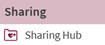
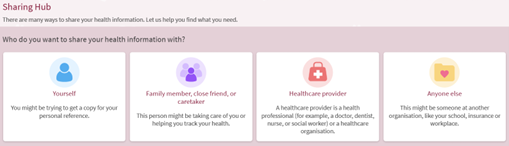
- The ‘Sharing Hub’ allows you to share your health information with a variety of different people. For proxy access, select ‘Family member, close friend or caretaker’.
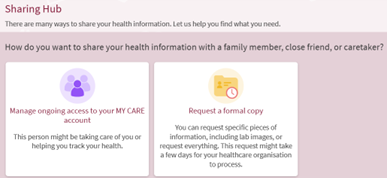
- Next, select how you want to share the information. For proxy access select ‘Manage ongoing access to your MY CARE account’.
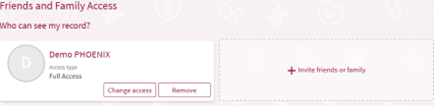
- This is the ‘Proxy Access’ page. From here you can invite proxies to view your MY CARE record. You can also manage the levels of access your proxies have and remove access.
Inviting a proxy
- To invite someone to view your MY CARE record, click ‘Invite friends or family’. This brings up the below page.
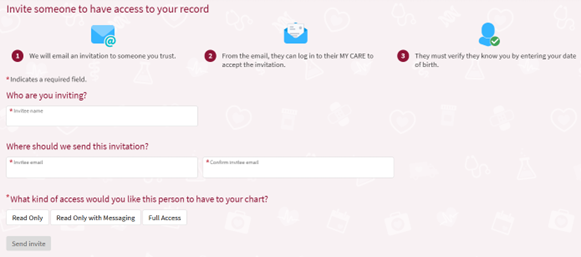
- Then enter the proxy’s name, email address, the level of access you wish them to have and click to send the invite.
- The invite will be sent to the proxy’s email address. They can use the link to log into their MY CARE account or sign up if they do not already have their own account. After agreeing to our proxy access disclaimer, they will then have access to your MY CARE record.
Removing proxy access
Removing access to your MY CARE account for your proxies at any point is quick and easy:
- From the MY CARE ‘Friends and Family Access’ page, click ‘Remove’ on the proxy that you would like to remove access for.
- Click ‘Remove’ on the pop up to confirm that you would like to remove the proxy’s access.
The proxy will no longer be able to access your MY CARE record when they log into their account.
The patient doesn’t have a MY CARE account, but they would like someone to have proxy access
Currently patients over the age of 16 are encouraged to manage their own proxies via their MY CARE account using the steps described above. If the patient does not have a MY CARE account and does not have the capacity to have one, the clinical care team can grant proxy access to a patient for a proxy where an active health and welfare lasting power of attorney is recorded on file for the patient.
If the patient is under the age of 16 and the person requesting access has parental responsibility for the child, they can request access to their child’s MY CARE record at their next appointment. This access will be removed when the child turns 16, at which point the proxy will be notified.
You can update your communication preferences at any time in MY CARE. Follow these simple steps:
- Log into your MY CARE account.
- Click Menu.
- Scroll to the bottom of the list and click on ‘Communication Preferences’.

- Use the toggles to set your preferences. If the toggle is grey, it is off. If the toggle is green, then it is on.
- Once you have made all your desired changes, click ‘Save Changes’ at the bottom of the screen.

Setting your communication preferences to receive appointment information via post
To receive appointment information by post, access ‘Communication Preferences’ using the steps outlined above. Then:
- In the ‘Details’ section, click on the ‘Appointments’ drop down to expand it.

- Locate ‘Post’, toggle it on or off by clicking the grey or green toggle
- Toggle Status: Grey – Appointment Information by post is toggled off – You will NOT receive appointment information via post, you will only receive this digitally via MY CARE.

- Toggle Status: Green – Appointment Information via Post is toggled on – You will receive appointment information via post as well as via MY CARE.

- Toggle Status: Grey – Appointment Information by post is toggled off – You will NOT receive appointment information via post, you will only receive this digitally via MY CARE.
- Your communication preferences have now been changed, and any future appointment information will be sent via your chosen communication preference.
Setting your communication preferences to control how you are notified that you have new appointment information
To control how you are notified that you have new appointment information in MY CARE you need to change the Messages section of your communication preferences. From the communications preferences page:
- Find the ‘Details’ section and click on the ‘Messages’ drop down to expand it.

- Click ‘Advanced’ settings to expand it further.

- Locate the ‘New Message’ section and toggle on or off ‘Email’ or ‘Text’ by clicking the grey or green toggle.

Remember:
- Check that you are editing the communication preference for ‘New Messages’ within the ‘Messages’ section and not the ‘Letter’ section.
- When you make any changes to your ‘Communication Preferences’ do not forget to click ‘Save changes’ at the bottom of the screen.
FAQ (frequently asked questions)
Where will I find my appointment information?
When you have new appointment information in MY CARE, you will receive an email or text to notify you. Please click the link in your email or text to go directly to the full appointment information.
You can also find your appointment information directly in MY CARE:
- Open the MY CARE home page.
- Click the on the ‘Messages’ section.
- Select the Appointment tab on the left-hand side and all your appointment information available in MY CARE will be displayed. You can use the search box to filter the results.
Please note: your visit information can also be found on the ‘Visits’ page.
How do I access the visiting information and information leaflets relating to my appointment?
If there is visiting information and/or patient information leaflets for your appointment, then you will be able to access these in MY CARE.
To find this information from the MY CARE home page:
- Click ‘Visits’.
- Locate the appointment that you would like to view the information for.
- Click ‘Details’.
Links for any relevant visiting information and information leaflets will be displayed in the ‘Prepare for Your Visit’ section. Click on the links to view more information.
Will I ever receive postal appointment letters if I opt out of post?
We are working to move most outpatient services to send digital letters via MY CARE, but there are some services that only send appointment information via post. Some services, such as Radiology, have letters generated via a different system and will remain outside of MY CARE. Patients without an active MY CARE account will continue to receive communication by post.
Why am I receiving multiple text messages about my appointments?
On the ‘Communication Preferences’ page, texts are controlled in two places, in the ‘Appointments’ section and in the ‘Messages’ section.
If you are receiving two texts per appointment and you would only like to receive one, you need to change your communication preferences.
To receive one text for each appointment we recommend having text message toggled on under the ‘Messages’ section and toggled off under the ‘Appointments’ section.
The ‘Appointment Notification and Information’ section just controls how you hear about appointments. To find and update the ‘Appointment and Notification’ section:
- From the ‘Communication Preferences’ page click on the ‘Appointments’ section to expand it.
- Click ‘Advanced Settings’ to expand it further.
- Locate the ‘Appointment Notification and Information’ section.
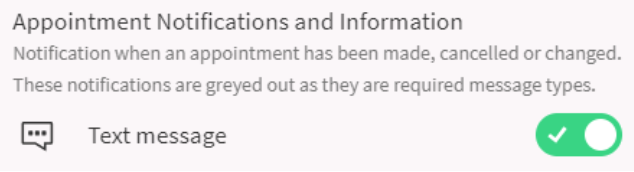
- Toggle text message OFF (grey).
The ‘New Message’ section controls how you hear about any new message in MY CARE (including appointments). To find and update the ‘New Message’ section:
- From the ‘Communication Preferences’ page, click on the ‘Messages’ section to expand it.
- Click ‘Advanced Settings’ to expand further.
- Locate the ‘New Message’ section.
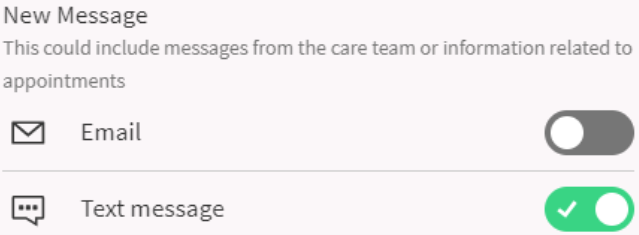
- Toggle text message ON (green).
How do I change my communication preferences for those people that I have proxy access to?
As well as being able to change your own communication preferences, you can also change your communication preferences for the notifications that you receive about the people that you have proxy access to.
- Once logged into your MY CARE account, click on your name at the top of the screen and select the person who you would like to change your communication preferences for.
- Once you are viewing their account, access the Communication Preferences page as normal. You will be editing your communication preferences for their account; this will not change the proxy’s own communication preferences.
Where can I find information about past appointments?
You will be able to see these on the ‘Visits’ page.
Deactivating your MY CARE account does not delete your medical record data, it only stops your access to it via MY CARE.
If you have decided that you no longer wish to use MY CARE and would like to deactivate your account, you can either do it yourself via MY CARE or by contacting the MY CARE Helpdesk on: rduh.mycarehelp@nhs.net or call 01392 404664, 8:30am to 4:30pm, Monday to Friday.
Follow these steps to deactivate your MY CARE account via MY CARE:
- From the home page, click the Menu button.
- From the menu, locate and click on ‘Account Settings’ from the settings section.

- Click ‘Deactivate’ account, located at the bottom of the screen.

- Read the information on the screen.
- If you wish to still continue with deactivating your account click ‘Deactivate’.
- Click ‘Yes’ to confirm your decision.
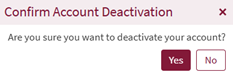
Your account has now been deactivated and you will be logged out. You have now lost access to MY CARE and its features.
If any other MY CARE users have access to your medical information as a proxy, they will continue to have this access even after your account is deactivated.
If you would like to reactivate your account you can contact the MY CARE Helpdesk on 01392 404664 to discuss options for reactivating your account.
Working in partnership
 We are working in partnership with Royal Devon University Healthcare NHS Foundation Trust and University Hospitals Plymouth NHS Trust to introduce a single Devon-wide hospital electronic patient record (EPR) with the Epic system that is already in use across Royal Devon.
This means that you will still be able to access information about your hospital and specialist community care your record via the MY CARE for all of your hospital and specialist community care no matter where you are in Devon.
Our privacy notice explains how we handle your information in our shared environments and how we will ensure your rights are respected.
MY CARE and the NHS app
MY CARE complements the NHS app. MY CARE gives you more detailed access to your hospital and specialist community care. The NHS app gives you information about your GP care, repeat prescriptions, vaccinations and NHS 111 online.
In spring 2026 MY CARE will be signposted within the NHS app.
MY CARE Helpdesk
For any MY CARE queries not answered in the FAQs, please contact our dedicated MY CARE Helpdesk on: rduh.mycarehelp@nhs.net or call 01392 404664, 8:30am to 4:30pm, Monday to Friday. Outside of these hours, please email and we will respond as soon as we can.
The helpdesk can support MY CARE users from across Devon.